

Apple’s iOS 26 for iPhone is now available to download.
The star of the operating system is the all-new design language known as Liquid Glass, which introduces a translucent layer to various interface elements that mimics the physical properties of real glass—including the way light shines and refracts through the material.
But iOS 26 is about more than just a pretty new digital face. The new operating system also adds some compelling new productivity features that make Apple’s smartphone a more helpful tool for work than ever before. These are the top five new productivity features Apple has just added to the iPhone.
5. Only take the phone calls you want
One of the most common interruptions to our workflow is phone calls. And given that U.S. consumers received over 4.1 billion robocalls in August alone, the chances are good it might be spam. Yet this isn’t always the case. One way to distinguish between a call you need to take and one you don’t is by glancing at the iPhone’s caller ID. But this only works if you recognize the number calling. If the number is unknown, you need to pick up to see who is on the other line—and what they’re calling for.
Now, with the new operating system, your iPhone gains a feature called Call Screening, which enables your iPhone to answer the unknown call for you by playing a message for the caller, which asks them to identify themselves and state a reason for their call. Once they do this, your iPhone will alert you to their response so that you can decide whether to take the call. If you decline, the unknown caller will be sent to voicemail.
To enable Call Screening in iOS 26:
- Open the Settings app.
- Tap Apps.
- Tap Phone.
- Under the Screen Unknown Callers heading, choose the level of Call Screening you desire. The three levels are “Never” (disable Call Screening), “Ask Reason for Calling” (your iPhone will collect the caller’s name and their reason for the call before alerting you), or “Silence” (all calls from unknown numbers will go right to voicemail).
4. Create calendar events with a screenshot
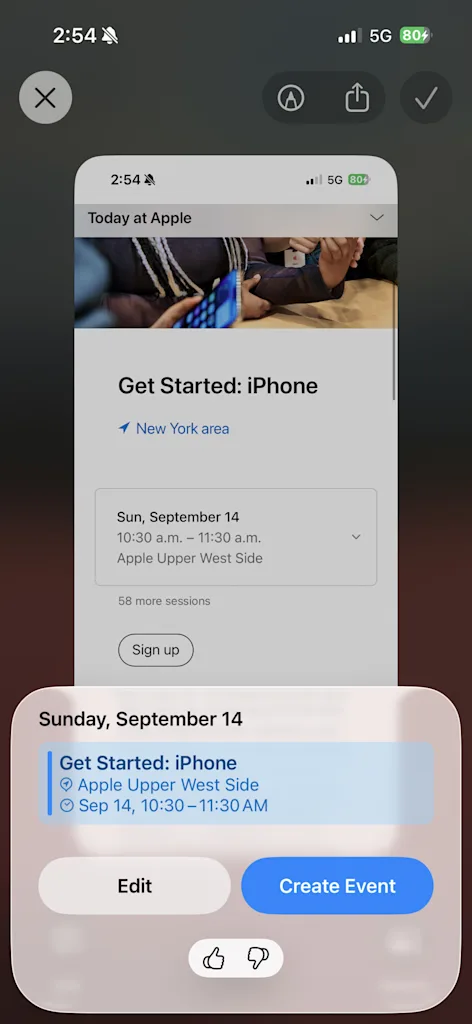
For many conferences or retreats, event organizers will email poster invites for the event, which include a photo of the venue, date, time, and location. Or sometimes they’ll post the invite to their social media feed or webpage. Prior to iOS 26, you had to enter this event information into your calendar manually.
However, with the new OS, you can now take a screenshot of the invite, and your iPhone will extract the relevant information from it and add it to your calendar with just a few taps. This greatly simplifies the tedious process of manually adding invites to your calendar. Here’s how:
- With the event invitation on your screen (whether it’s an image attached to an email, a webpage, or a social media post), take a screenshot on your iPhone by pressing the volume up and power buttons simultaneously.
- iOS 26 will detect the event information in the screenshot and display a “Add to Calendar” button below it. Tap this button.
- A pop-up will appear showing the event information that has been extracted from the screenshot. Tap the “Create Event” button to add the event to your calendar.
You’ll now see a listing for the event in your Calendar app.
3. Make your iPhone wait on hold for you
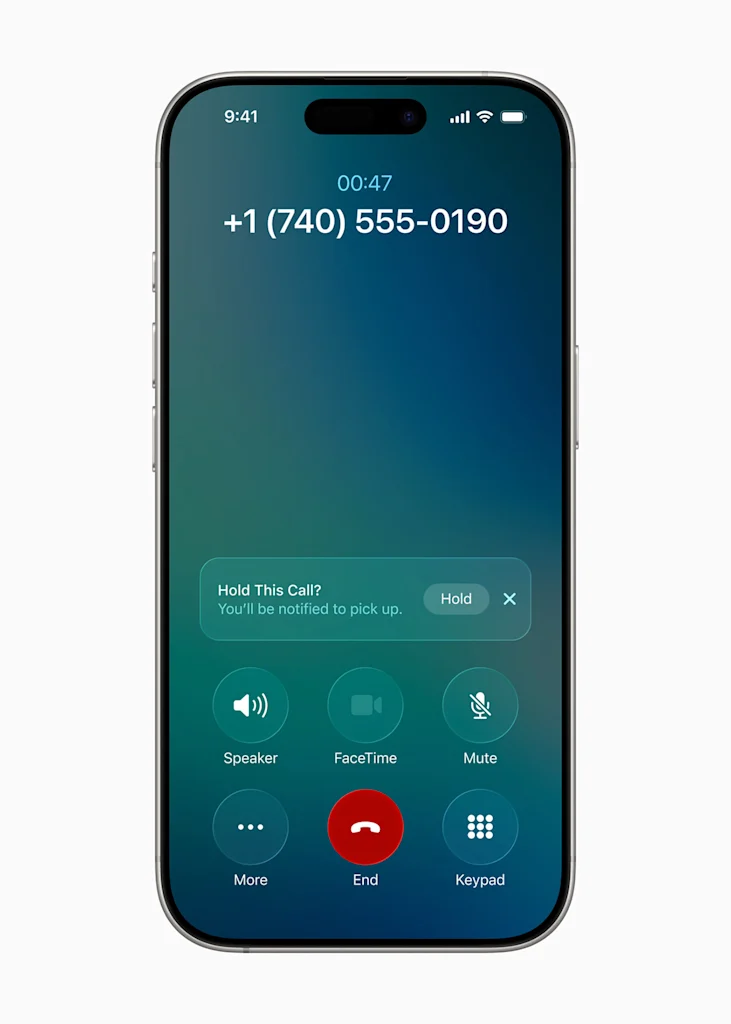
With iOS 26, waiting on hold is a thing of the past, thanks to a new feature called Hold Assist.
With Hold Assist, your iPhone can wait on hold for you while you continue with your work. When you finally get connected to someone, your iPhone will ring you again to let you know they are on the line.
To use Hold Assist in iOS 26:
- Open the Settings app.
- Tap Apps.
- Tap Phone.
- Ensure the “Hold Assist Detection” toggle is turned on (green).
- Now, dial a phone number as you normally would. When you are placed on hold, tap the “Hold” button on your iPhone’s dialer screen.
Your iPhone will notify you when it’s time to pick up the phone again to talk to a real person.
2. Put AI to work as your foreign language interpreter
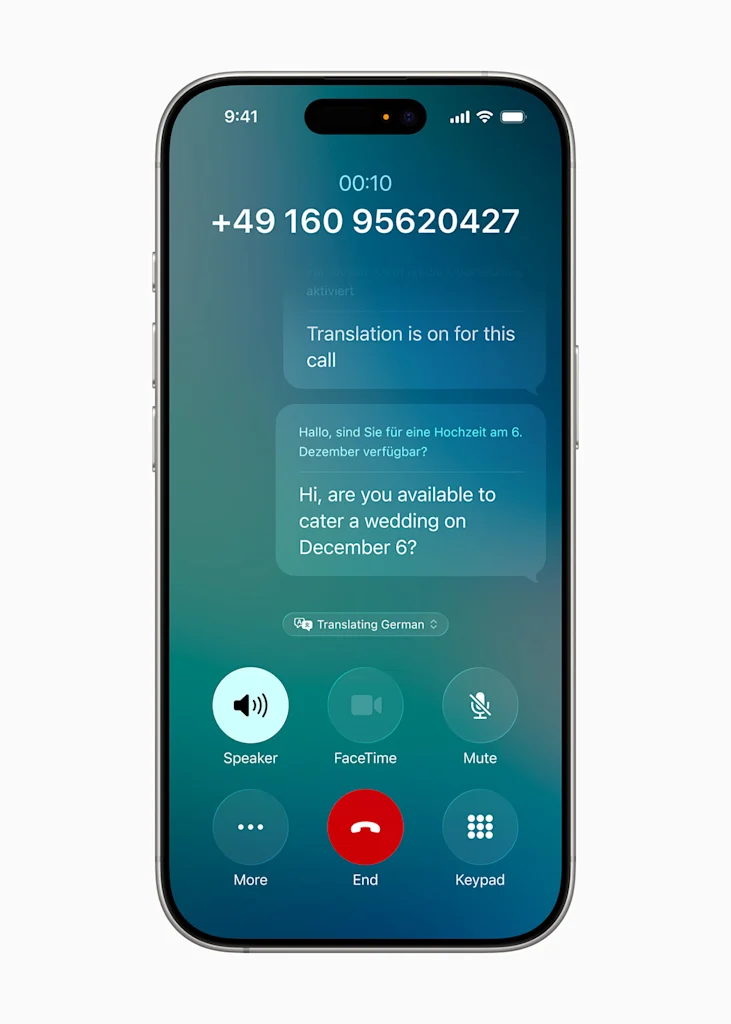
Business is global, and that means that we may often find ourselves needing to communicate with people who don’t speak the same language as we do. Now, in iOS 26, your iPhone can act as your personal digital interpreter thanks to a new feature called Live Translation.
The feature uses Apple’s AI platform, Apple Intelligence, and works across all major iPhone communication apps, including Messages, FaceTime, and Phone. In Messages, text conversations will be cross-translated in real-time. In FaceTime, real-time caption translations will appear on your screen. And in the Phone app, the iPhone will actually speak the translated conversation for you.
Live Translation is enabled by default and will kick in whenever your iPhone detects you’re communicating with someone who is using a different language from yours. However, this feature only works on iPhones that support Apple Intelligence, which includes the iPhone 15 Pro and later models.
1. Customize folders for better file management
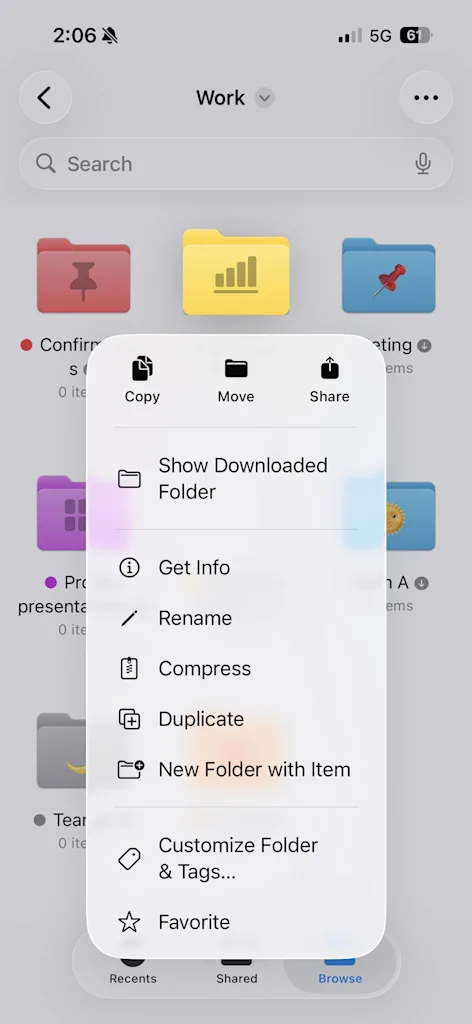
Apple’s Files app is a robust file management system on your iPhone, enabling you to store and access documents and other essential files for your work. Before iOS 26, the folders in which these documents were stored and sorted all looked the same—plain and pale blue. However, in iOS 26, Apple has added the ability to customize the look of each folder, allowing you to create custom designs that make it easy to pinpoint the folder containing the files you need at that moment.
In iOS 26, you can customize the folders in the Files app in numerous ways, including by color and by adding a symbol or even an emoji to the front of the folder. Here’s how:
- Open the Files app on your iPhone.
- Long-press on a folder you want to customize and tap “Customize Folder & Tags . . .” from the pop-up menu.
- Select the Tags button, then choose a color to give the folder a new hue, and tap the checkmark button.
- Now, choose a symbol you want to add to the front of the folder (Apple provides hundreds of options).
- Alternatively, tap the Emoji button and select an emoji you want to add to the front of the folder.
- Tap the blue checkmark button when done.
Best of all, after customizing your folder to your liking, the new style will sync across all your devices using iCloud Drive, so it’ll look the same on your iPhone, iPad, and Mac.
iOS 26 is now available as a free download. It requires an iPhone 11 or later to run.