
No matter how flashy a smartphone might be, how many features it touts, it has a single piece of technology packed inside that is more important than any other: the battery. When it runs dry, your smartphone can no longer be the world’s best camera or the ultimate communication device. It is nothing more than a useless slab of glass and metal.
Which is exactly why manufacturers do everything they can to prolong battery life. Over the past several years, Apple has been cramming higher-capacity batteries into its smartphones so that they last longer on a single charge. The company has also been optimizing its software to prolong the iPhone’s juice.
In iOS 26, Apple has added four new features to the iPhone that can help users eek out as much battery life as possible. Here’s how to use them.
Enable Adaptive Power
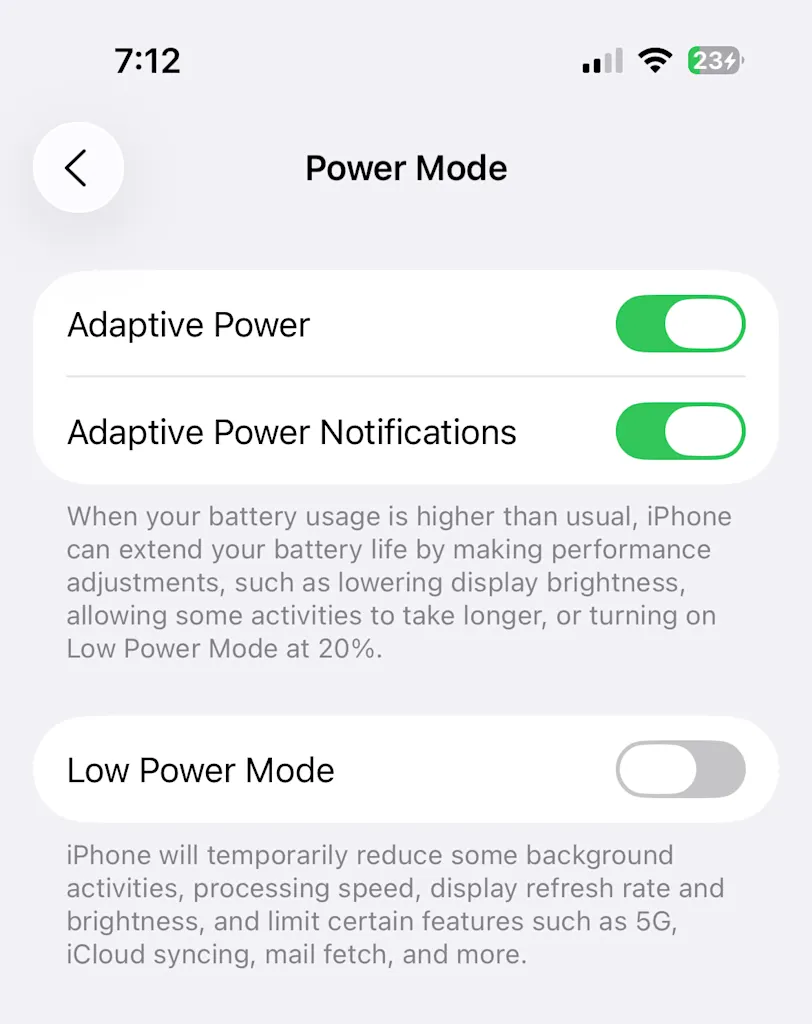
Adaptive Power is one of the best features of iOS 26, because it can help keep your iPhone going longer on a single charge. The feature utilizes machine learning, a form of artificial intelligence, to track your recent iPhone usage patterns. It then uses this data to predict whether you may need extra battery life for the day.
If Adaptive Power determines that you are, in fact, going to need more battery life for the day, it will help conserve your iPhone’s power by lowering the screen brightness by 3%, limiting background activities, turning on Low Power Mode when your battery reaches 20%, and making other performance adjustments. It does all this automatically—provided that you have Adaptive Power enabled. Here’s how to do that:
- Open the Settings app.
- Tap Battery.
- Tap Power Mode.
- Toggle the switch next to Adaptive Power to ON (green).
- Additionally, if you toggle the Adaptive Power Notifications switch to ON (green), your iPhone will also show you a notification whenever Adaptive Power mode kicks in. If this toggle is disabled, Adaptive Power mode will still engage; you just won’t be notified of it.
It should be noted that, while Adaptive Power is an iOS 26 feature, not all iPhones that can run iOS 26 can take advantage of this. Since Adaptive Power relies on artificial intelligence, it only works on the iPhone 15 Pro and later.
Quickly enable Low Power Mode when the iPhone needs it most
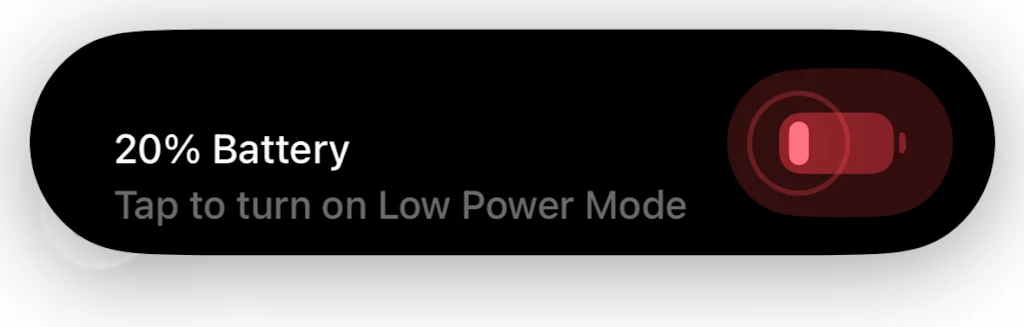
Low Power Mode is another feature that you can use to conserve your iPhone’s battery life. Low Power Mode has been available on iPhones for some time, but with iOS 26, Apple has introduced a new way to turn the mode on easily.
If your iPhone has the Dynamic Island, a notification will now appear there, alerting you that your iPhone’s battery life is down to 20%. The notification will also show you a toggle that you can tap to turn on Low Power Mode quickly. Previously, you needed to turn on Low Power Mode by going into the Settings app or via the iPhone’s Control Center. Putting the toggle in the notification itself means that Low Power Mode is just a tap away when you need it most.
What sets Low Power Mode apart from Adaptive Power is that it works on iPhones older than the iPhone 15 Pro. But to use the new Low Power Mode notification toggle, you’ll need an iPhone with a Dynamic Island, which is the iPhone 14 Pro and later. If you’ve got one of those supported phones:
- When the Low Battery notification appears in the Dynamic Island, tap the red toggle to turn on Low Power Mode. The red toggle will change to yellow when Low Power Mode is engaged.
When Low Power Mode is on, your iPhone will reduce its brightness and some visual effects, turn off background app refresh and email fetching, pause iCloud Photos syncing, and implement other power-saving features.
See how long your iPhone battery will take to charge
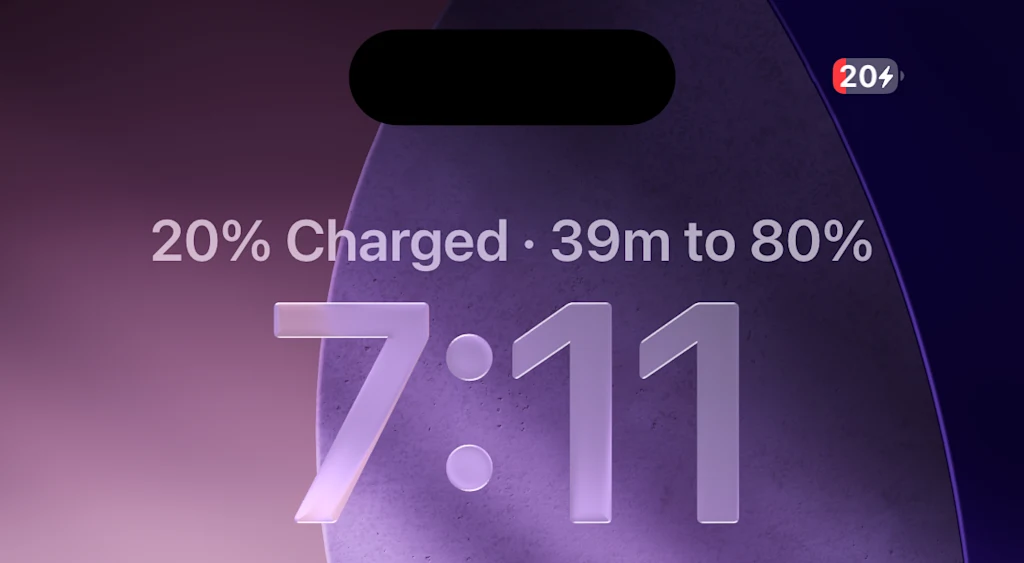
Another welcome new feature in iOS 26 that can help you manage your battery life is a new charging time indicator on the iPhone’s Lock Screen. This indicator will tell you how long your iPhone will take to charge to 100% (or a lower percentage if you’ve set a battery charging limit). It’s a convenient feature that takes the guesswork out of determining how long your iPhone needs to remain plugged in. Here’s how to use it:
- Plug your iPhone into a charger.
- Once the screen turns off, tap it with your finger.
Above the clock, you’ll see a notification that tells you what percentage of your battery is currently charged and how many minutes or hours it will take to charge your iPhone to its desired charging level (usually 80% or 100%, depending on your preferences).
How to better understand your iPhone’s battery health
Using the three tips above can help you conserve and manage your iPhone’s battery for longer. But these aren’t the only features Apple has built into iOS to help you understand your iPhone’s battery life.
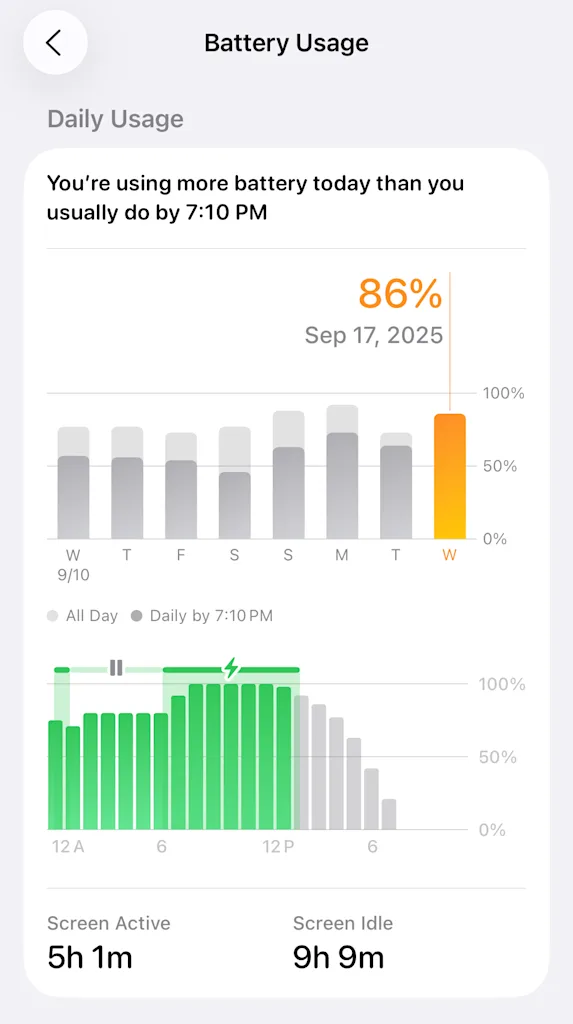
For years now, Apple has included a Battery Dashboard inside the Settings app. This dashboard gives you an overview of not just your battery’s charge, but also which apps are using the most power. In iOS 26, the Battery Dashboard has received a visual makeover.
To access it, open the Settings app and tap on Battery. On the next screen, you’ll see key battery metrics that can help give you a better understanding of how your iPhone’s battery is being used, including which apps and system activities are taking up the most power, how long ago your last charge was, and what remaining capacity your battery has left.
Understanding this information, and taking advantage of the new iOS 26 battery features listed above, can help you keep your iPhone running longer.