
There’s a lot to love about iOS 27 and macOS 27, the new operating systems released for iPhone and Mac last month. The Liquid Glass design language now has a fluidity and polish that it lacked when introduced last year in iOS 26 and macOS 26.
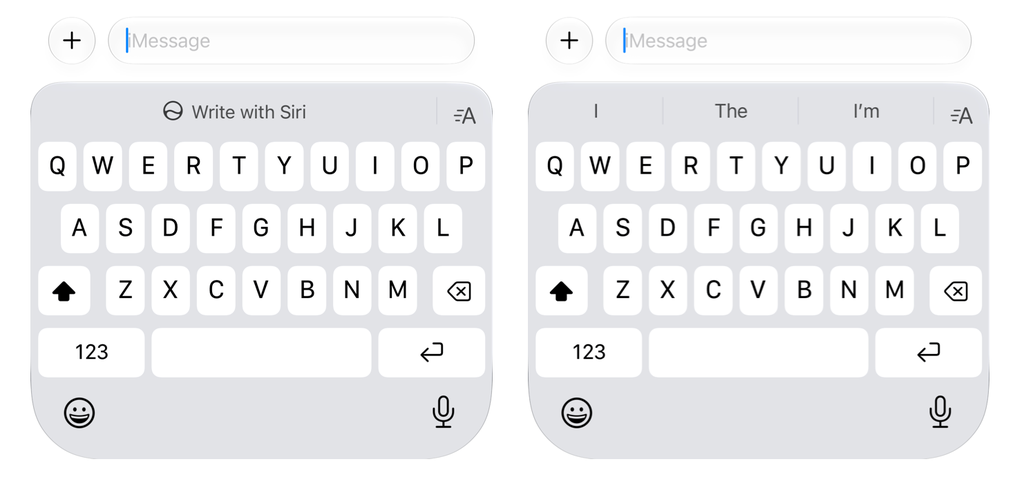
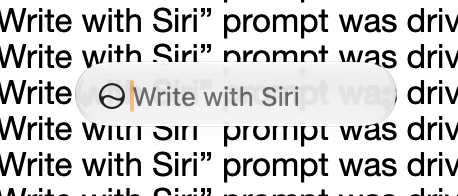
But as much as I love the new operating systems, there’s one thing that has driven me crazy ever since I updated my devices: the “Write with Siri” tool, which appears as a popover floating toolbar on the Mac and a big button above the keyboard on iPhone.
The tool, part of the new Siri AI, helps users generate text nearly anywhere—in a document, email, or messaging app. Unfortunately, it’s there even if you don’t want to use it. (And Apple, I never do. I don’t need help from generative AI in deciding how I should respond to my mom’s text inquiring when I’ll be over for dinner next).
Its presence is not only pointless for many who don’t need machine help with their writing, but it’s distracting, especially on the Mac, where a stray mouse click can easily expand the popover when you are trying to edit text. Thankfully, there is a way you can disable Write with Siri—though Apple doesn’t make it obvious.
How to disable ‘Write with Siri’ on an iPhone or iPad
On the iPhone, the Write with Siri tool primarily takes the form of a big glaring button above the keyboard on iOS 27. It’s there by default, whether you want it or not. And frustratingly, if you do want to disable it, you can’t do so where you would naturally assume you could: in the Siri section of the Settings app.
But there is a place where you can. It’s hidden under the Content & Privacy Restrictions of the Screen Time settings in iOS 27. Here’s how to find those settings and shut Write with Siri down:
- Open the Settings app.
- Tap Screen Time.
- Under the Restrictions heading, tap Content & Privacy.
- Toggle the Content & Privacy Restrictions switch to on (green).
- Tap Siri.
- Tap Writing Assistance.
- Tap “Don’t Allow.”
Now, when your iPhone’s keyboard next appears, the big “Write with Siri” button sitting atop the keyboard should be gone, replaced by the default predictive text choices that have been a staple of iOS for years (and which are easier to disable, by going to Settings>General>Keyboard).
How to disable ‘Write with Siri’ on a Mac
On a Mac, things are a little less straightforward. Common sense says you should be able to follow the steps above to disable Write with Siri. But in my testing, even after turning off the Writing Assistance toggle (in the Siri content restrictions in macOS’s Screen Time settings), the annoying “Write with Siri” floating bubble still appears wherever you type in apps, like Pages. I suspect that this is an unresolved bug.
Thankfully, there’s another option for turning off Write with Siri on the Mac (though it is more restrictive). You can do this by disabling the new Siri AI in one of two ways.
The first is by going to the Siri settings in the Settings app:
- Open the Settings app.
- Click Siri.
- Click Turn Off Siri.
- Click the next Turn Off Siri button, too.
Alternately, you can disable the new Siri AI and default to the old, less robust version, which does not support the Write with Siri popover floating toolbar.
To revert to the old version of Siri:
- Open the Settings app.
- Click Screen Time.
- Under the Restrictions heading, click Content & Privacy.
- Toggle the Content & Privacy Restrictions switch to on (blue).
- Click Siri.
- On the next screen, under “Allowed Siri Version,” select “Siri Classic” from the drop-down menu.
- Click Done.
Apple doesn’t make disabling ‘Write with Siri’ straightforward—and that’s probably by design
Big Tech has spent hundreds of billions of dollars on artificial intelligence development over the past five years—and there’s no sign that spending will be slowing anytime soon. It’s a huge bet, and in order for it to pay off, the tech giants need everyday users to adopt their AI tools en masse.
For many consumers, that adoption has felt forced upon them. Google search now surfaces AI answers before search results, Meta has shoved its AI assistant into nearly every app it makes, and Microsoft has integrated AI across Windows.
Apple, of course, has spent far less on AI buildout than its competitors have, but that hasn’t stopped it from jumping on the AI train. The headline feature of its new operating systems this year was Siri AI, and its newest hardware product, the HomeView, relies entirely on artificial intelligence.
That’s not to mention the fact that investors seem to be demanding Apple “catch up” to its other Big Tech competitors to become a major player in the space. So it’s no wonder that Apple, too, wants to put its AI offerings within as easy reach as possible—even if its users haven’t asked for it.
Increasing Siri AI usage is surely a goal the company has, so it’s not much of a surprise that Apple has made disabling its individual features less than straightforward, but now you know you at least can. I wonder what Siri would say about that?