
Just in time for the busy holiday travel season, Apple has rolled out a new iOS 26 feature that lets users store their U.S. passport on their iPhone. The digitization of the passport is something tech-savvy travelers have longed for, especially as other once physical-only items that have crowded our pockets, like credit cards, driver’s licenses, and even car keys, have made their way onto the iPhone.
But so far there are limitations to what you can do with your digitized passport, which Apple dubs your “Digital ID.” Here’s what you need to know about uploading your passport to your iPhone and what you can—and can’t—use it for once it’s there.
How to add your passport to your iPhone
Adding your U.S. passport to your iPhone is relatively straightforward—provided your iPhone and your passport meet some requirements.
As far as your iPhone goes, it must be an iPhone 11 or later; it must be running iOS 26.1 or later; and its region must be set to the United States. You’ll also need Face ID or Touch ID turned on, as well as Bluetooth. Finally, your Apple Account must have two-factor authentication enabled.
As far as your passport is concerned, it must be a United States passport, and it must not be expired.
If your iPhone and passport meet these requirements, you can add your passport to your iPhone. Here’s how:
- Open the Wallet app.
- Tap the + button.
- Tap Driver’s License and ID Cards.
- Tap Digital ID.
- Tap “Add to iPhone and Apple Watch” or “Add to iPhone Only.”
- Scan the photo page of your U.S. passport when prompted.
- Use your iPhone to scan the chip on the inside back cover of your passport when prompted.
- Take a live photo of your face when prompted and follow the facial movement instructions that appear on the screen.
Once you’ve gone through the steps above, Apple will verify the details from your scanned passport and your facial movements, and your iPhone will then send you a notification when your passport information, contained in what Apple calls your “Digital ID,” is available in the Wallet app.
Verification is usually done within a few minutes.
What information does your Digital ID hold?
The new Digital ID on your iPhone contains much of the information in your passport. This includes your:
- Legal name
- Date of birth
- Age
- Sex
- Passport number
- Passport issue date
- Passport expiration date
If you open the Wallet app, tap your Digital ID, then tap the “i” button, you’ll even be able to see your passport photo on the “Physical Passport Information” screen.
You can’t use your digital passport everywhere
The first thing many people are likely to think when they hear they can now add their U.S. passport to their iPhone is, Great! I don’t need to carry my physical passport with me anymore.
Unfortunately, this isn’t true.
Your passport’s information, stored in your new Digital ID card in iOS 26’s Wallet app, can be used as an identity document to get through some airport checkpoints—but the keyword is some.
Apple says its new Digital ID is currently “in beta,” and during that beta stage it can be used at Transportation Security Administration checkpoints in “more than 250 airports in the U.S. for in-person identity verification during domestic travel.”
But while your new Digital ID will get you past TSA security checkpoints at these 250-plus locations, it cannot be used for international travel or at border crossings.
“Digital ID gives more people a way to create and present an ID in Apple wallet even if they do not have a REAL ID-compliant driver’s license or state ID,” Apple says. “Digital ID is not a replacement for a physical passport, and cannot be used for international travel and border crossing in lieu of a U.S. passport.”
Can I rely on my digitized passport for domestic travel?
Even if you’re flying domestically, it’s still wise to carry alternate acceptable forms of ID that will get you through a TSA checkpoint. This includes your REAL ID-compliant driver’s license or your actual physical U.S. passport, which is also REAL ID-compliant.
Apple says you can use your newly digitized passport on your iPhone “at TSA checkpoints at more than 250 airports in the U.S.,” but the company was unable to provide me with a list of these airports.
An Apple spokesperson told me that most major U.S. airports, including John F. Kennedy International (JFK) and San Francisco International (SFO), accept Digital ID. However, since the TSA is the authority regarding where Digital ID is accepted, Apple directed me to the government agency for a list of airports that recognize the new ID. (As of this writing, the TSA has not yet responded to my inquiry.)
You can store your U.S. passport on your iPhone. But should you?
One concern individuals may have is whether putting their passport on their iPhone is a wise move from a privacy and security standpoint.
Apple says the Digital ID on your iPhone is encrypted, and since your passport’s information is locked behind Face ID or Touch ID, even if someone had access to your phone, they couldn’t access your passport information.
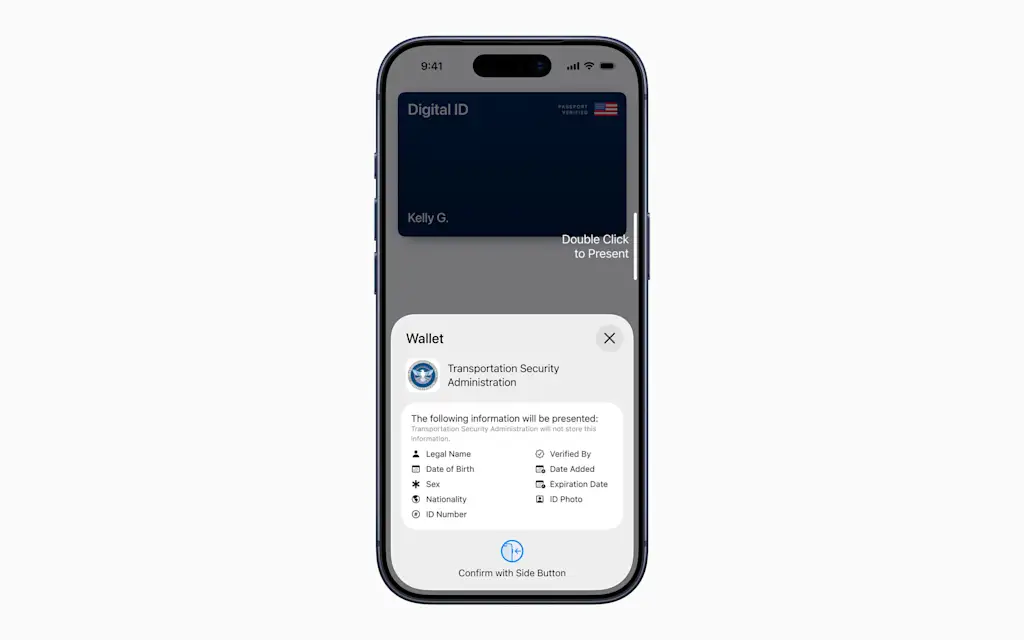
Those who worry that using a Digital ID will mean they’ll need to hand their iPhone over to TSA staff at the airport can rest easy, too. If you want to use your Digital ID at a TSA checkpoint, you won’t have to unlock your iPhone or hand the device over to TSA staff.
Instead, you’ll present your Digital ID much like you do a credit card you use with Apple Pay: You’ll place your phone near a TSA reader, and your iPhone will alert you to the passport information it will share. Further, it will share this information only with your authorization, which you give by double-clicking the iPhone’s side button and scanning your biometrics using the iPhone’s Face or Touch ID.
By allowing users to add their passport information to their iPhone, Apple has made the upcoming holiday travel season a little more convenient for many with domestic flights to catch. Too bad that’s likely to be the only convenient thing about U.S. air travel in the weeks ahead.