
Close Menu
    Facebook X (Twitter) Instagram
    TRENDING :
    • The “enslopification” of B2B marketing is here
    • Connor Hellebuyck Sends Heartfelt Message to Jets Fans After Devils Move
    • This new tool layers Wikipedia articles onto a map to make your half-hour walk more interesting
    • Robinson vs Frankford Middle School Football Live Stream
    • How to turn off Google’s AI Overviews—and reclaim search sanity
    • Minnesota Unveils Class 6A Football State Tournament Brackets
    • Why leaders shouldn’t have to apologize for private remarks
    • Every Michigan High School Football Team Heading to the 2026 Playoffs
    Populist Bulletin
    • Home
    • US Politics
    • World Politics
    • Economy
    • Business
    • Headline News
    Populist Bulletin
    Home»Business»How to turn off Google’s AI Overviews—and reclaim search sanity
    Business 4 Mins Read

    How to turn off Google’s AI Overviews—and reclaim search sanity

    Business 4 Mins Read
    Share Facebook Twitter Pinterest LinkedIn Tumblr Telegram Email Copy Link
    Follow Us
    Google News Flipboard
    Share
    Facebook Twitter LinkedIn Pinterest Email


    We’ve got two competing realities when it comes to tracking down info online these days:

    1. Getting answers has never been easier, between all the artificial intelligence chatbots in front of us and the unavoidable smearing of “AI Overview” answers at the top of regular Google search results.
    2. Getting accurate information has never been more challenging—thanks to the fact that all that AI-generated gobbledygook is flat-out wrong a shockingly high amount of the time (anywhere from 10% on the lower end to 50% and up, when it comes to more niche and specialized info).

    To use some highly technical terminology, that ain’t great.

    BUT: There’s an easy, powerful workaround to skip all those accuracy-challenged internet search “shortcuts” and go back to the basic, traditional web search of yesteryear—without any AI and without any costs or compromises.

    Today’s Cool Tool is one you’ll absolutely want to hang onto.

    This tip originally appeared in the free Cool Tools newsletter from The Intelligence. Get the next issue in your inbox and get ready to discover all sorts of awesome tech treasures!

    Your AI-free Google search workaround

    Few folks are aware—or remember—but back when Google first started gunking up its search results with all sorts of AI drivel, it built in a detour to avoid all of that and get pure, simple, clean web results without any of the added noise.

    ➜ That workaround is still available, if you know how to activate it. And it does more than just strip out the AI Overview additions. It also removes shopping boxes, info boxes, related news suggestions, and pretty much all the other distractions that litter search results these days.

    ⌚ It’s incredibly easy to do, too—we’re talkin’ two seconds of active effort.

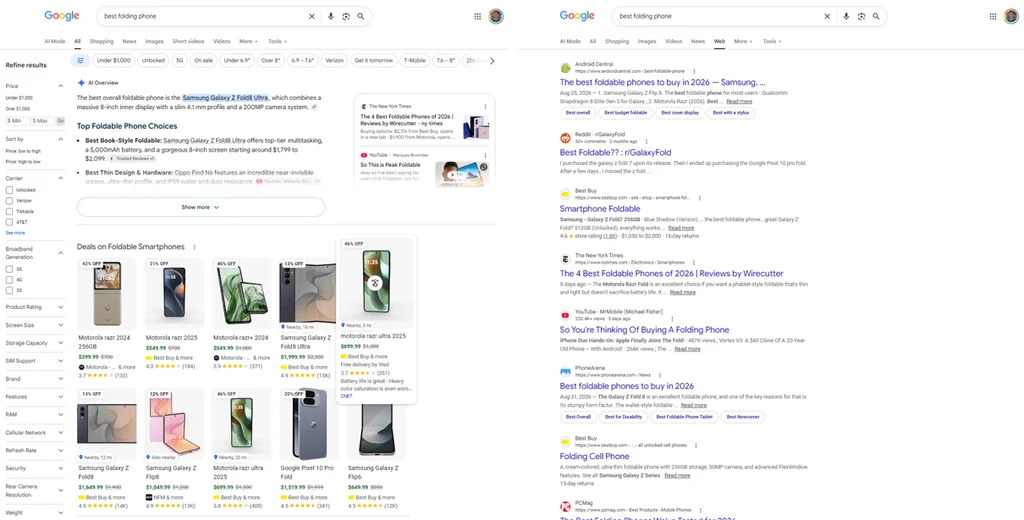
    And the difference really is staggering. I mean, look at this side-by-side comparison showing standard Google search results for a random query compared to search results with all the extra noise removed:

    The standard 2026 Google Search view, at left, and the stripped-down and AI-free alternative, at right.

    Quite the contrast, no?

    ✅ And, again, there really isn’t much to this, once you know where to look:

    • The simplest way to get pure and simple Google search results without AI Overviews or any other additions is to perform your searches through a site called UDM14​. All it does is send your query directly to Google with the right code at the end to remove all the extra junk and show you only standard web results—without any added tracking or other chicanery.

    UDM14 makes a minimalist Google Search experience especially easy.
    • If you’d rather go directly to Google, you can start a search the regular way and then:
      • From a smartphone, scroll through the list of result types at the top of the screen—the line with options like “AI Mode,” “All,” “Images,” and so on—until you see “Web,” then tap on that.
      • From a computer, click “More” within that same line of options and then click on “Web” from there.
    • Or, if you don’t mind getting a little technical, you can also manually add a parameter, &udm=14, to the end of any Google search URL.
      • So, for instance, ​https://www.google.com/search?q=best+folding+phone​ would become  https://www.google.com/search?q=best+folding+phone&udm=14​.
    • And if you really want to get advanced and fancy, you can set up a custom search engine within your desktop computer browser​ so that it automatically applies that parameter to every search for you.

    Using the UDM14 site is by far the simplest way to do this, but hey, you’ve got options.

    And whichever way you go, you’ll find yourself basking in the joy of AI-free, clutter-free search results for the first time in ages.

    Can I get a collective “hallelujah”?!

    • UDM14 is ​a regular ol’ website​ that works in any browser, on any device, and doesn’t require any downloads or installations.
    • It’s free to use; there’s a single small and unobtrusive ad on its main landing page.
    • The site doesn’t track searches, require sign-ins, or collect any manner of personal data.

    Treat yourself to all sorts of brain-boosting goodies like this with the free Cool Tools newsletter—starting with an instant introduction to an incredible audio app that’ll tune up your days in truly delightful ways.


    Source link

    Share. Facebook Twitter Pinterest LinkedIn Tumblr Email

    Related Posts

    The “enslopification” of B2B marketing is here

    October 24, 2026

    This new tool layers Wikipedia articles onto a map to make your half-hour walk more interesting

    October 24, 2026

    Why leaders shouldn’t have to apologize for private remarks

    October 24, 2026
    Top News
    US Politics 10 Mins Read

    Will the Iran War Destroy MAGA?

    US Politics 10 Mins Read

    Politics / March 20, 2026 Trump’s coalition is splintering over nationalism and Israel. Ad Policy…

    7 Inspiring Collaboration Marketing Examples You Should Know

    August 2, 2026

    Actress Opens Up About Eating Disorder Battle

    September 18, 2026

    Are Your Prices Fair? There’s a Simple Formula to Find Out

    July 23, 2026
    Top Trending
    Business 5 Mins Read

    The “enslopification” of B2B marketing is here

    Business 5 Mins Read

    There’s a phenomenon happening in advertising and marketing. If you’ve been on…

    World Politics 1 Min Read

    Connor Hellebuyck Sends Heartfelt Message to Jets Fans After Devils Move

    World Politics 1 Min Read

    Goaltender Connor Hellebuyck is opening up about his departure from Winnipeg, leaving…

    Business 3 Mins Read

    This new tool layers Wikipedia articles onto a map to make your half-hour walk more interesting

    Business 3 Mins Read

    How much do you really know about the world right outside your…

    Categories
    • Business
    • Economy
    • Headline News
    • Top News
    • US Politics
    • World Politics
    About us

    The Populist Bulletin was founded with a fervent commitment to inform, inspire, empower and spark meaningful conversations about the economy, business, politics, government accountability, globalization, and the preservation of American cultural heritage.

    We are devoted to delivering straightforward, unfiltered, compelling, relatable stories that resonate with the majority of the American public, while boldly challenging false mainstream narratives that seem to only serve entrenched elitists, and foreign interests.

    Top Picks

    The “enslopification” of B2B marketing is here

    October 24, 2026

    Connor Hellebuyck Sends Heartfelt Message to Jets Fans After Devils Move

    October 24, 2026

    This new tool layers Wikipedia articles onto a map to make your half-hour walk more interesting

    October 24, 2026
    Categories
    • Business
    • Economy
    • Headline News
    • Top News
    • US Politics
    • World Politics
    Copyright © 2025 Populist Bulletin. All Rights Reserved.

    Type above and press Enter to search. Press Esc to cancel.