
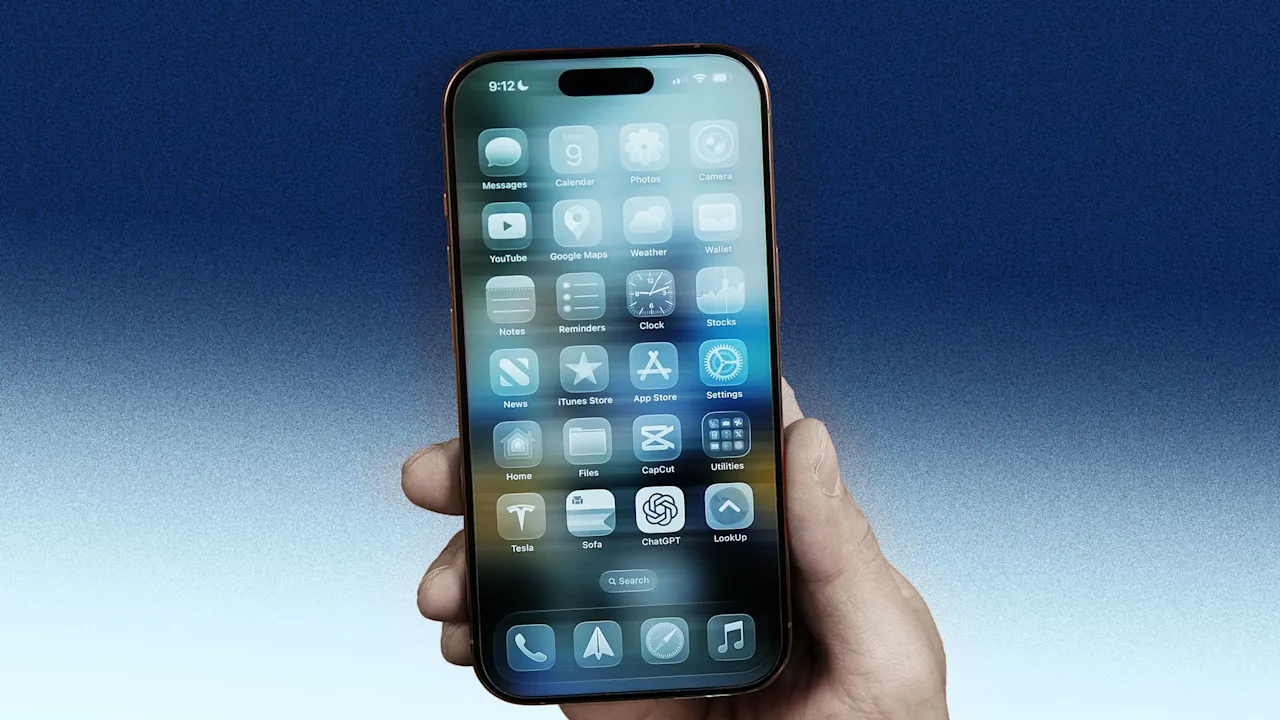
Apple’s iOS 26 has been available for nearly six months now, but it’s still one of the company’s least well-received software updates for the iPhone.
Primarily, people have criticized the new Liquid Glass user interface design, which Apple now lets you tone down. But iOS 26 also changed the way many apps function on the iPhone, disrupting a user’s muscle memory and expectations, leading to many to pine for the way the iPhone functioned on iOS 18.
Yet while you can’t revert to iOS 18 once you’ve upgraded to iOS 26, you can make some simple tweaks that will make your iOS 26 iPhone function as it did before. Here’s how.
1. Give Safari the layout it used to have, before iOS 26
After Liquid Glass, one of the most frequent complaints I’ve heard about iOS 26 relates to the Safari app. In iOS 26, Apple changed Safari’s default interface, giving it a new “compact” design that hides important buttons, including bookmarks and tabs.
In iOS 26, you now have to tap a new three-dots button next to the new compact URL bar to reveal the buttons that let you access your bookmarks, tabs, and other functions. This change both disrupts muscle memory and requires you to tap more just to access the browser’s basic features.
Thankfully, you can ditch the new iOS 26 Safari layout and revert to the layout Safari had in iOS 18 by doing the following:
- Open the Settings app.
- Tap Apps.
- Tap Safari.
- Under the “Tabs” section, tap Bottom.
Doing this again places the important bookmarks and tabs buttons directly on a toolbar at the bottom of Safari.
2. Switch back to the classic Phone interface
In iOS 26, Apple also changed the layout of the Phone app, giving it a new “unified” interface that both merges the “Favorites” and “Recents” toolbar buttons into a single “Calls” button and jettisons the Voicemail button entirely. While this change declutters the Phone interface, it also means you have to tap more just to access basic features—like your voicemails.
Thankfully, as with Safari above, you can revert the Phone app to its old interface:
- Open the Phone app.
- Tap the three-bar button in the top right corner.
- In the pop-up menu, tap the Classic interface button.
Your Phone app will now have the same layout it had in iOS 18.
3. Stop Music from auto-mixing your songs
iOS 26 not only changed the layout of some of the iPhone’s most popular apps, but it also changed the way you hear your music in the Music app. In iOS 26, the Music app cross-mixes your songs by default, melding the end of one with the beginning of the next using AI.
Needless to say, this annoys the heck out of many music aficionados, who like to hear the entire song as the artist envisioned. But thankfully, you can disable this AI slopification of your songs by doing the following:
- Open the Settings app.
- Tap Apps.
- Tap Music.
- Under the Audio header, tap Song Transitions.
- On the Song Transitions screen, toggle the Song Transitions button to off.
Your music will now play as it did in iOS 18.
4. Disable background wallpapers in Messages
iOS 26 brought some helpful new features to the Messages app, including polls and the ability to live translate messages not in your native language. But Messages in iOS 26 also added the ability to change a chat’s background. And while this in itself isn’t bad, the user doesn’t have total control over the look of their background by default. The person they are chatting with can change it for everyone in the conversation.
When this happens, it’s a distracting pain for all those who like to see blue bubbles against a clean, white background. The good thing is that you can disable background wallpapers by doing the following, which will make Messages look as it did in iOS 18:
- Open the Settings app.
- Tap Apps.
- Tap Messages.
- Tap the “Conversation Backgrounds” switch to toggle the feature off.
Even if the friend you’re texting with changes their background, all you’ll see is the glorious white background you were used to in iOS 18.
5. Get PDFs to open where you’re used to
In iOS 26, Apple brought the Previews app from the Mac to iPhone. Previews is Apple’s PDF reader, and its presence on the iPhone isn’t a bad thing. But the default way iOS 26 handles PDFs now is to open them in Previews, not the Files app (the iPhone’s file manager where documents are stored), which complicates things.
In iOS 18, tapping on a PDF in Files would open it where you expected: inside the Files app. But in iOS 26, tapping on a PDF in the Files app kicks you out of Files and launches the Previews app, where the PDF opens. This is a pain, especially if you just wanted to quickly browse all the PDFs you have in the Files app.
Luckily, you can stop this from happening by deleting the Previews app from your iPhone:
- Tap and hold on the Previews app icon.
- From the pop-up menu, tap Remove app.
- Tap Delete App.
- Tap Delete.
Now, when you tap on a PDF in Files, it will open in the Files app—just like it did in iOS 18.