
Close Menu
    Facebook X (Twitter) Instagram
    TRENDING :
    • Snap layoffs today: 16% of jobs cut as CEO Evan Spiegel is the latest to tout AI advances
    • With 7 short words, the CEO of United Airlines just taught a brilliant lesson in leadership
    • Disney begins laying off 1,000 employees. Here’s who will be affected
    • Quantum computing stocks are back on the rise. Here’s why IONQ, QBTS, RGTI, and QUBT are up
    • Hungary 3rd Time A Charm?
    • The padel app turning matches into meet-cutes
    • Let’s Finally Do Something About the Bulldozer That Killed My Daughter
    • Thrive Global founder and CEO Arianna Huffington on her first job and what lessons she learned from it
    Populist Bulletin
    • Home
    • US Politics
    • World Politics
    • Economy
    • Business
    • Headline News
    Populist Bulletin
    Home»Business»5 time-saving Outlook features you’re probably overlooking
    Business 3 Mins Read

    5 time-saving Outlook features you’re probably overlooking

    Business 3 Mins Read
    Share Facebook Twitter Pinterest LinkedIn Tumblr Telegram Email Copy Link
    Follow Us
    Google News Flipboard
    Share
    Facebook Twitter LinkedIn Pinterest Email


    I’m a big fan of efficiency, mostly because I’m also a big fan of doing as little work as possible while still getting things done.

    Thankfully, Microsoft Outlook is packed with hidden gems and clever little features designed to make work life easier. The only problem: They’re buried under a bunch of menus or just aren’t obvious. Here are five of my favorite built-in Outlook features you might not be using yet.

    Quick Steps

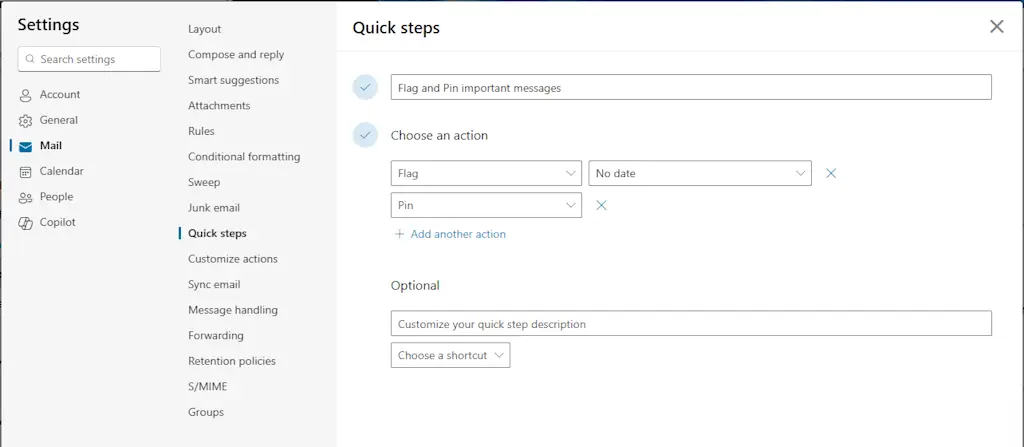
    “Quick Steps” is a neat little automation feature that lets you create a single-click button to perform multiple actions on an email.

    For example, you could have a Quick Step that moves an email to a specific folder, marks it as having been read, and then forwards it to a colleague. Or one that marks it as done and archives it.

    It’s essentially a macro for your email, allowing you to automate those repetitive, multistep actions and get them done in a fraction of the time. Click the Quick Steps button in the main ribbon to start setting them up.
    Focused Inbox

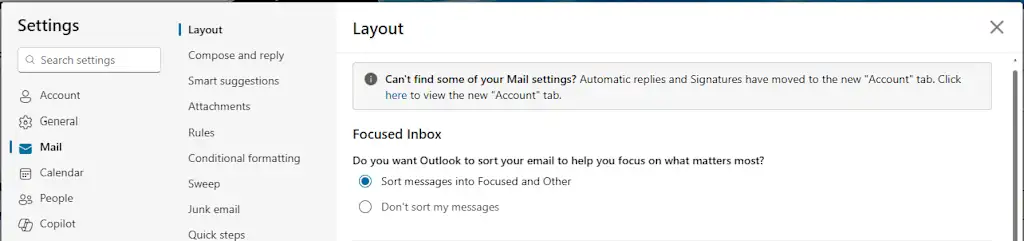
    The best way to deal with email is to not deal with it at all. For that, Outlook has a feature called “Focused Inbox” that uses machine learning to decide which emails are important and which are just noise.

    It automatically sorts your messages into two tabs: “Focused” and “Other.” The “Other” tab is where all the newsletters, notifications, and promotional emails go to live in peace.

    This isn’t a filter you have to set up yourself; it’s a smart system that learns what you care about.

    To enable it, go to Settings > Mail > Layout, and toggle Focused Inbox on.
    Ignore Conversation

    Can you call it a real job if you’re not part of at least one long email chain with a dozen other people, and after the third reply-all, you realize the chain no longer has anything to do with you?

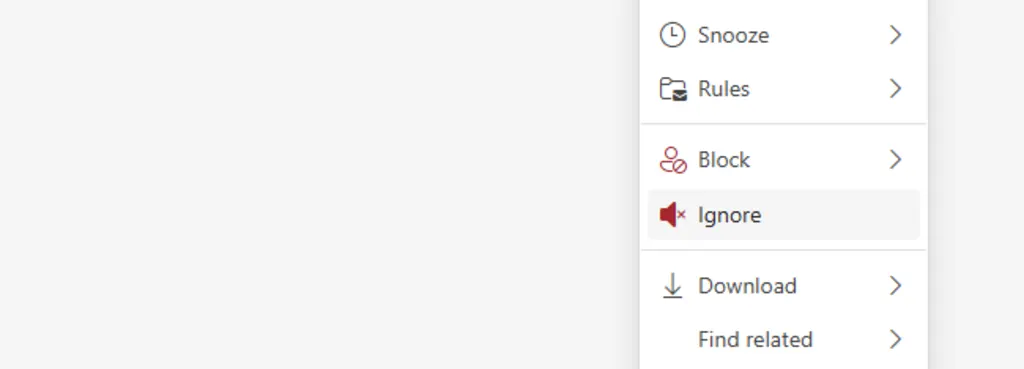
    This is where the “Ignore Conversation” feature comes in. It’s a tiny little lifesaver.

    Select an email in your inbox pane, right-click on it, and choose “Ignore.” Every subsequent message in that thread will automatically be moved to your “Deleted Items” folder. It’s an easy, guilt-free way to excuse yourself from a digital conversation you have no interest in participating in.
    Sweep

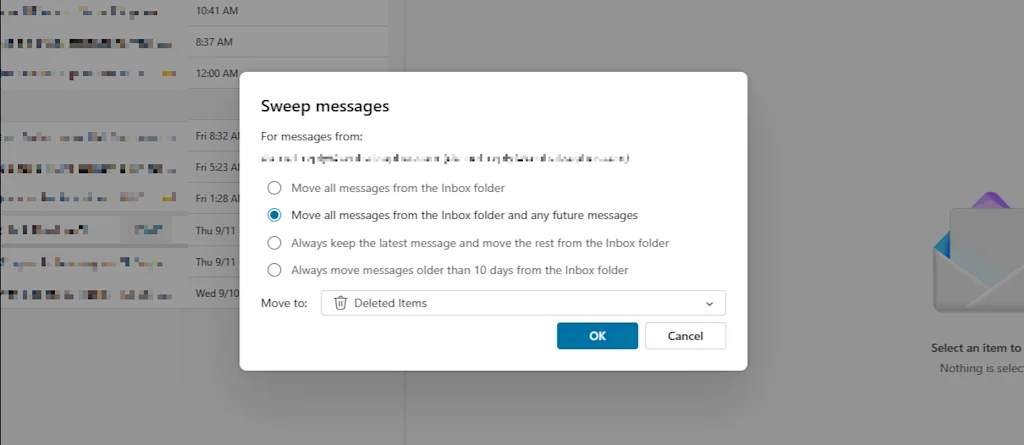
    We’ve all signed up for a service, gotten 100 emails, and then realized we don’t want them anymore. Luckily, Outlook has a “Sweep” feature that automates the whole process of mass deletion.

    It lets you quickly delete all messages from a specific sender, and you can set a rule to automatically delete any future emails from them as they arrive.

    To use it, click Sweep in the main ribbon while viewing a message from a sender you no longer want to hear from, and select how you’d like to treat current and future messages.
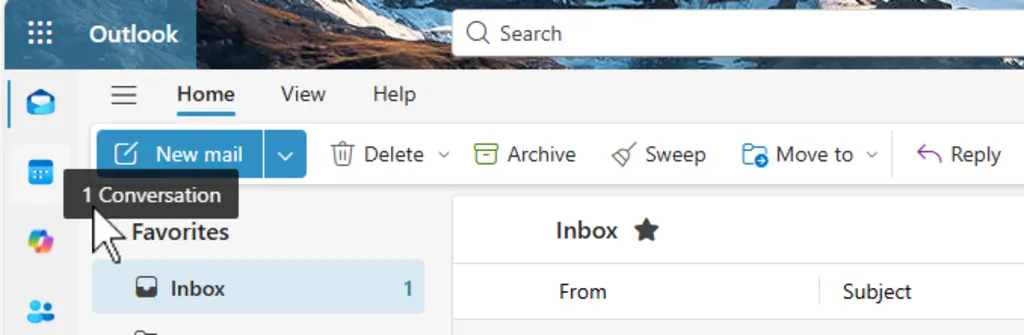
    Drag-and-drop meeting scheduling

    You’ve received an email from someone, and you need to set up a meeting with them. Just drag and drop the message from your inbox onto your calendar icon.

    Outlook will automatically create a new meeting invitation, with the email subject as the meeting title and the email recipient as an attendee. It’s a huge time-saver when you’re working with multiple clients or colleagues and need to get a meeting on the books in a hurry.


    Source link

    Share. Facebook Twitter Pinterest LinkedIn Tumblr Email

    Related Posts

    Snap layoffs today: 16% of jobs cut as CEO Evan Spiegel is the latest to tout AI advances

    April 15, 2026

    With 7 short words, the CEO of United Airlines just taught a brilliant lesson in leadership

    April 15, 2026

    Disney begins laying off 1,000 employees. Here’s who will be affected

    April 15, 2026
    Top News
    Business 5 Mins Read

    The shutdown is over. An expert explains what’s next for the economy

    Business 5 Mins Read

    After 43 days, the U.S. government shutdown finally came to an end late on November…

    Who do You Believe

    March 24, 2026

    What Are Key Benefits of Customer Feedback Analytics?

    December 21, 2025

    Top 7 Craft Shops in the USA You Must Visit

    January 20, 2026
    Top Trending
    Business 2 Mins Read

    Snap layoffs today: 16% of jobs cut as CEO Evan Spiegel is the latest to tout AI advances

    Business 2 Mins Read

    On Wednesday, April 15, Snap CEO Evan Spiegel announced in a letter…

    Business 3 Mins Read

    With 7 short words, the CEO of United Airlines just taught a brilliant lesson in leadership

    Business 3 Mins Read

    One advantage of writing about airlines and business for a long time is perspective.…

    Business 2 Mins Read

    Disney begins laying off 1,000 employees. Here’s who will be affected

    Business 2 Mins Read

    The Walt Disney Co. on Tuesday began layoffs expected to lead to…

    Categories
    • Business
    • Economy
    • Headline News
    • Top News
    • US Politics
    • World Politics
    About us

    The Populist Bulletin was founded with a fervent commitment to inform, inspire, empower and spark meaningful conversations about the economy, business, politics, government accountability, globalization, and the preservation of American cultural heritage.

    We are devoted to delivering straightforward, unfiltered, compelling, relatable stories that resonate with the majority of the American public, while boldly challenging false mainstream narratives that seem to only serve entrenched elitists, and foreign interests.

    Top Picks

    Snap layoffs today: 16% of jobs cut as CEO Evan Spiegel is the latest to tout AI advances

    April 15, 2026

    With 7 short words, the CEO of United Airlines just taught a brilliant lesson in leadership

    April 15, 2026

    Disney begins laying off 1,000 employees. Here’s who will be affected

    April 15, 2026
    Categories
    • Business
    • Economy
    • Headline News
    • Top News
    • US Politics
    • World Politics
    Copyright © 2025 Populist Bulletin. All Rights Reserved.

    Type above and press Enter to search. Press Esc to cancel.