
Modern smartphones don’t run out of juice mid-afternoon because their batteries are defective. They run out because dozens of invisible background services are constantly running full-throttle in your pocket. Apps are pinging GPS satellites, pulling fresh data over weak cellular connections, and redrawing high-resolution screens 120 times per second.
If your charger’s at home on the counter, alone and forgotten, you don’t need to put your phone in a drawer or live on Low Power Mode all day. Making a few surgical software adjustments can claw back about 30 percent of your battery life without turning your device into an offline paperweight. Here’s how.
Rein in Background App Refresh
Background App Refresh sounds helpful, but most apps don’t need it. Social media feeds, retail apps, and casual games use this permission to download ads and content silently while your phone sits idle.
- On iOS: Go to Settings > General > Background App Refresh. Switch it from “Wi-Fi & Cellular” to “Wi-Fi Only,” or turn it off entirely for every app except your essential email and messaging clients.
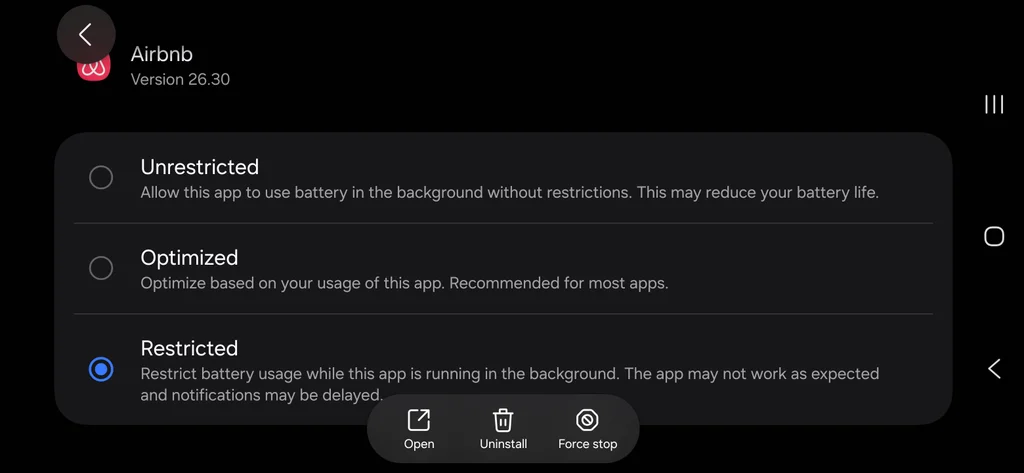
- On Android: Go to Settings > Apps, select non-essential apps individually, tap Battery, and switch the background usage setting to Restricted.
Audit location tracking permissions
GPS is one of the most power-hungry components in your phone. When an app checks your precise location every few minutes in the background, it fires up the location hardware and drains power rapidly.
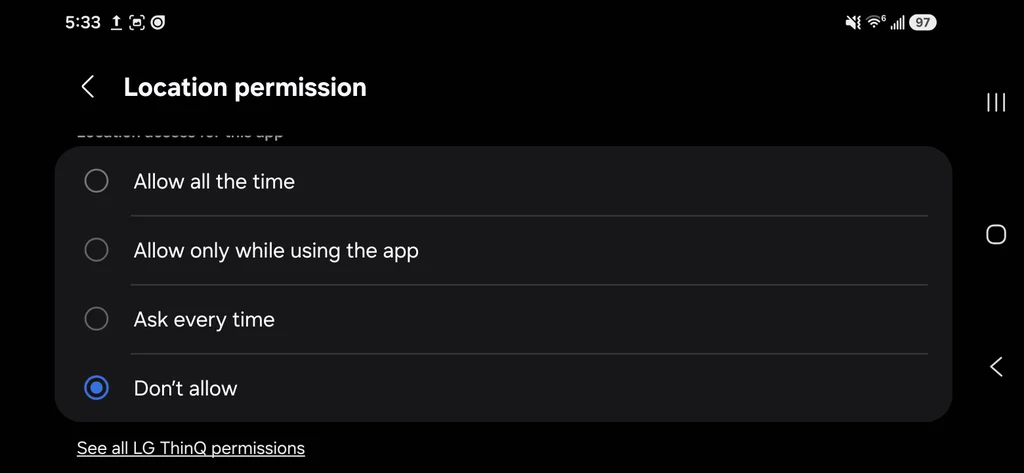
- Navigate to your location privacy settings (Privacy & Security > Location Services on iPhone; Settings > Location > App permissions on Android).
- Change every app that doesn’t strictly need background GPS (like food delivery or shopping apps) from “Always” to “While Using the App” or even off completely—like I just did for the app that controls my washing machine! No idea why LG needs always-on location for that.
- Toggle off Precise Location for apps like weather or news that only need to know what city you are in.
Downshift your display
Your screen is the single most power-hungry piece of hardware on your device. On long travel days, disabling high-end visual polish frees up significant battery capacity without compromising usability.
- Enable true dark mode (OLED displays only): Because modern OLED screens illuminate individual pixels, rendering pure black consumes zero power on those parts of the panel.
- iOS: Go to Settings > Display & Brightness, then tap Dark. (Optional: Toggle Automatic off so it stays dark all day).
- Android: Go to Settings > Display, and toggle on Dark theme (or Dark mode on Samsung devices).
- Disable always-on display: Keeping time, weather widgets, and lock screen wallpaper visible while your phone sits on your desk burns about one to two percent of battery every hour.
- iOS: Go to Settings > Display & Brightness > Always On Display, and toggle Always On Display to Off.
- Android: Go to Settings > Display > Lock screen, and toggle off Always show time and info (or Always On Display under Samsung Lock Screen settings).
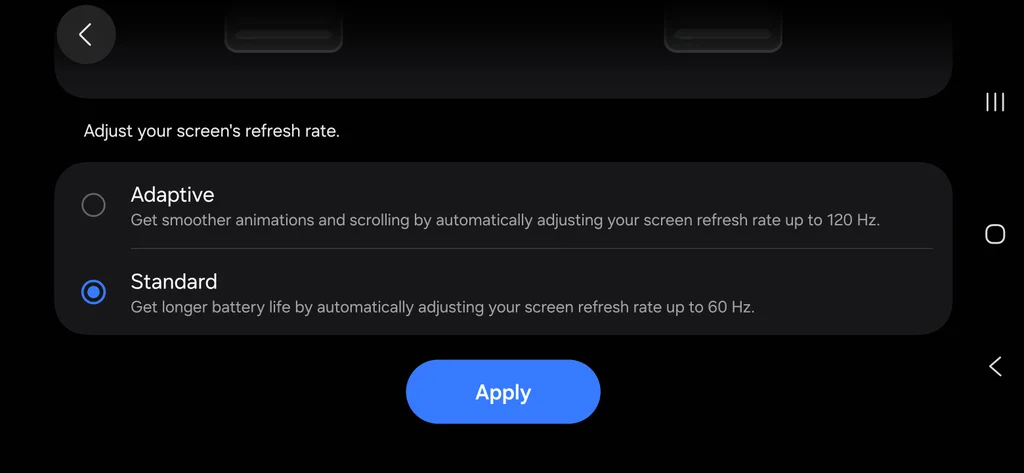
- Cap high refresh rate displays at 60Hz: If your device features a smooth 120Hz display (Apple ProMotion or Android Smooth Display), your phone redraws the screen twice as fast as a standard display. Dropping to 60Hz is barely noticeable when checking email or reading documents, but saves substantial juice.
- iOS: Go to Settings > Accessibility > Motion, and toggle on Limit Frame Rate (this clamps the panel to 60Hz).
- Android: Go to Settings > Display > Motion Smoothness (or Smooth Display), and switch the selection from High/Adaptive to Standard.
Forego 5G
5G radios require significantly more energy than 4G/LTE modems, especially when passing through airports or riding trains where 5G coverage fluctuates.
Forcing your phone to stop searching for high-band 5G signals stops battery drain immediately.
- Configure 5G settings on iPhone: Open Settings > Cellular > Cellular Data Options > Voice & Data. Choose 5G Auto to let iOS automatically drop down to LTE whenever 5G isn’t actively providing noticeably better speeds, or choose LTE if you’re in a weak signal area to prevent the 5G modem from firing up altogether.
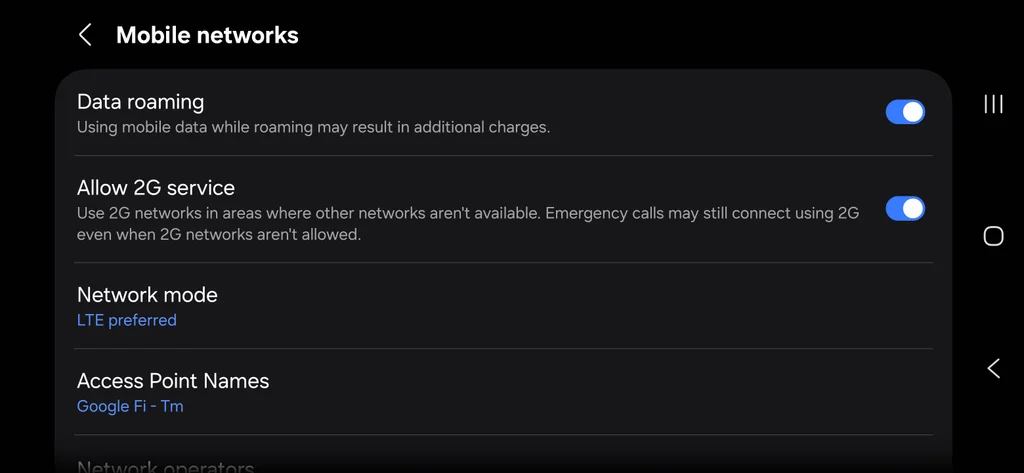
- Configure Network Mode on Android: Open Settings > Network & internet (or Connections on Samsung) > SIMs (or Mobile networks). Tap Preferred network type (or Network mode), and switch from 5G/LTE/3G/2G (Auto connect) to LTE/3G/2G (Auto connect) or LTE. This keeps the phone locked to stable LTE towers without hunting for high-frequency 5G bands.
One of the most aggressive battery killers on a travel day isn’t an app, it’s a bad cell signal. When you enter a dead zone or a metal-shielded conference room, your phone turns up its transmitter power to try to reach a tower.
If you notice your signal dropping down to a single bar while you’re working in a weak coverage area, flip on Airplane Mode manually and re-enable Wi-Fi if available. Preventing your phone from constantly searching for cellular signals saves a ton of juice.